



Wondering how to improve website speed? Learn the Core Web Vitals targets, how to find your real bottleneck, and 7 fixes in the order that pays off first.
Is your website slow, but you can't tell whether it's the images, the hosting, or that pile of plugins someone installed two years ago?
You've probably tried the usual advice. Compress a few images. Install a caching plugin. Run a speed test, get a red score, and wonder what to do with it.
Sound familiar?
The problem is that most speed advice treats every fix as equal. They aren't. Google's own guidance breaks page loading into four parts, and fixing the wrong one wastes weeks.
This guide shows you how to improve website speed in the right order: what to measure, what the targets are, and seven fixes you can work through one by one.
Key Takeaways
- Google's "good" targets are an LCP of 2.5 seconds or less, an INP of 200 milliseconds or less, and a CLS of 0.1 or less, measured at the 75th percentile of real visits.
- Fix the slowest part of your Largest Contentful Paint first, because Google splits it into four subparts and each needs a different fix.
- Never lazy-load the main image at the top of the page, since web.dev says it always adds unnecessary load delay.
- Mobile pass rates are still low, with 43% of mobile sites showing good Core Web Vitals in 2024, so a fast site is a real edge.
- Test with real-user (field) data first and lab tools second, because the two can disagree and Google judges you on field data.
What Counts as a Fast Website?
"Fast" has a definition. According to web.dev, a page should have a Largest Contentful Paint (LCP) within 2.5 seconds of when it starts loading, an Interaction to Next Paint (INP) of 200 milliseconds or less, and a Cumulative Layout Shift (CLS) of 0.1 or less.
In plain words:
- LCP: how long until the biggest thing on screen (usually a hero image or headline) appears.
- INP: how quickly the page reacts when someone taps, clicks or types.
- CLS: how much the layout jumps around while loading.
There's one detail most guides skip. web.dev says a page passes only when it meets the targets at the 75th percentile of page loads, segmented by mobile and desktop, for all three metrics. That means one fast visit on your office Wi-Fi proves nothing. Three out of four real visitors need a good experience.
Does it matter for search? Google says it highly recommends good Core Web Vitals for success with Search, and that they align with what its core ranking systems seek to reward. It doesn't call them a direct ranking factor, so treat speed as a tiebreaker and a conversion lever, not a magic switch.

Step 1: Measure Real Users Before You Change Anything
Start with field data, which is what real visitors experienced. In PageSpeed Insights, the top section shows this when your site has enough traffic. Search Console's Core Web Vitals report groups your slow URLs, so you can fix a template once instead of a hundred pages.
Lab tests (the Lighthouse score underneath) are still useful. They show you why something is slow. But they simulate one device on one connection, so don't chase a perfect 100 if your field data is already green.
Write down three numbers for your top five pages: LCP, INP and CLS on mobile. That's your baseline.
Step 2: Find Which Part of Your LCP Is Slow
This is the step that saves you time. web.dev's LCP guide splits LCP into four subparts and gives recommended shares of the total:
- Time to First Byte (TTFB): about 40%.
- Resource load delay: under 10%.
- Resource load duration: about 40%.
- Element render delay: under 10%.
The guide calls these guidelines, not strict rules. Still, if your hero image takes 2 seconds to even start downloading, that's load delay, and compressing it harder won't help.
Use the PageSpeed Insights diagnostics or Chrome DevTools to see which subpart is oversized, then pick the matching fix below.
Step 3: Make Your Main Image Load Early
Resource load delay is the first fix web.dev lists. Make the LCP image discoverable in the initial HTML and give it a high fetch priority.
And the rule that trips up the most sites: never lazy-load your LCP image, because it always leads to unnecessary resource load delay.
Here's how common the mistake is. The 2024 Web Almanac found the LCP image was lazy-loaded on 16% of mobile pages, and not statically discoverable on 35%. Only 15% used fetchpriority=high.
That's an easy win. Check your top pages for these three things:
- The hero image is an actual image tag in the HTML, not a CSS background or something injected by a script.
- It does not have loading="lazy".
- It has fetchpriority="high".
Step 4: Shrink and Serve Files Smarter
Resource load duration is about file weight and distance. The fixes from web.dev are to shrink the resource with modern formats, compression and correct sizing, serve it from closer to users with a CDN, and cache it so repeat visits skip the network.
In practice:
- Export images at the size they display, not at the size your camera produced.
- Use WebP or AVIF. The Web Almanac found only 7% of mobile LCP images were WebP in 2024, so most sites are leaving savings behind.
- Put static files behind a CDN.
- Set long cache lifetimes on files that rarely change.

Step 5: Cut Render-Blocking Code
Element render delay is the gap between the image arriving and the browser actually painting it. Per web.dev, the fixes are to reduce or inline render-blocking CSS, avoid synchronous scripts in the head, consider server-side rendering or prerendering, and break up long tasks that block the main thread.
This is where most slow business sites actually live. Chat widgets, tracking tags, sliders and page-builder bloat all add scripts. Make a list of everything that loads, and ask one question of each item: does this earn money or leads? If not, remove it. If you can't tell, defer it.
Step 6: Fix a Slow Server (TTFB)
TTFB is about 40% of a healthy LCP, so a sluggish server drags everything else down. web.dev recommends minimizing redirects and making sure cached content can be served from CDN edge servers, for example by avoiding unique URL parameters that bypass the cache.
If your TTFB stays high after that, the cause is usually cheap hosting or an uncached database-heavy page. That's the point to talk to your host or developer, not to install a fifth plugin.
Step 7: Make the Page Respond Fast (INP) and Stop the Jumping (CLS)
INP looks at the whole visit. According to web.dev, it reports the longest interaction observed while ignoring outliers, and good means 200 milliseconds or less, while above 500 milliseconds is poor. Heavy JavaScript is the usual culprit, so the same script audit from Step 5 helps here too.
For CLS, reserve space. Give images and embeds width and height, and don't inject banners above content after the page has loaded. A cookie bar that pushes the page down is a classic offender.
Speed Fixes in Action: A Quick Example
Picture a service business whose homepage hero is a 2 MB photo set as a CSS background, with a chat widget loading in the head. Their LCP is 4.1 seconds on mobile.
The subpart check shows most of the time is spent before the image even starts to download. So the order of work is clear:
- Move the hero into an image tag with fetchpriority="high".
- Resize and convert it to WebP.
- Defer the chat widget until the visitor interacts.
- Re-test on mobile field data after a few weeks.
That's an illustrative scenario, not a client result. The point is the order: find the slow subpart, then fix that one.
The wider picture shows why it's worth the effort. According to the 2024 Web Almanac, the share of mobile sites with good Core Web Vitals (INP-based) rose from 31% in 2022 to 37% in 2023 and 43% in 2024.
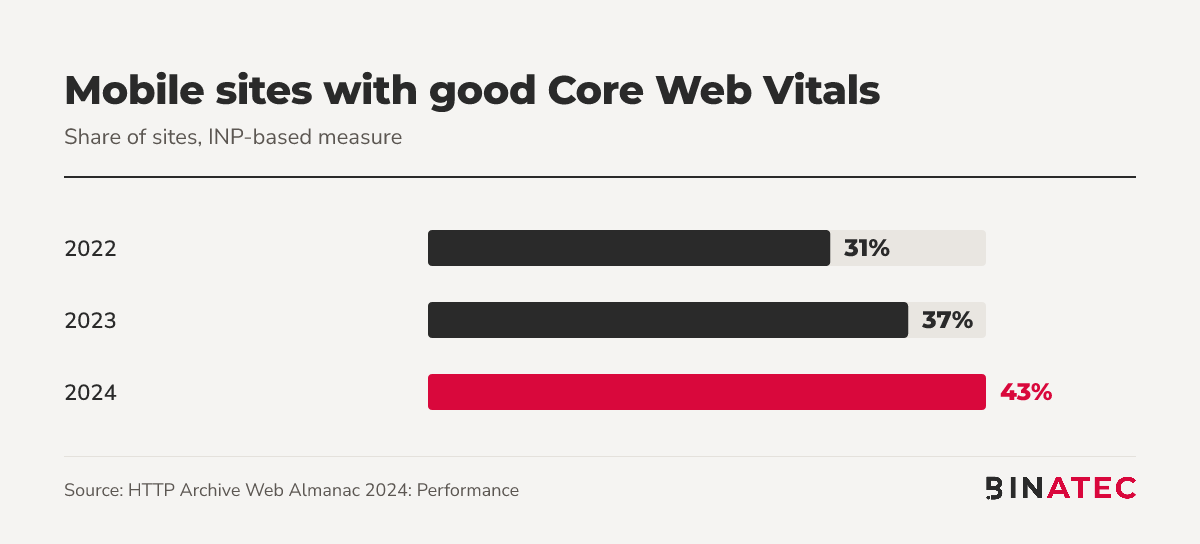
Better, but still under half. If your mobile pages pass, you're ahead of most competitors.
When Speed Work Isn't Your Biggest Problem
Be honest about the limits. If your pages already pass at the 75th percentile, more tuning gives you little. Your time is better spent on offers, copy and the conversion path.
And because Google doesn't call Core Web Vitals a direct ranking factor, a green score won't rescue thin content. Speed removes friction. It doesn't create demand.

FAQs
What is a good page load time?
Aim for a Largest Contentful Paint of 2.5 seconds or less on at least 75% of visits, with mobile and desktop measured separately. That's Google's published "good" target on web.dev. Keep INP at 200 milliseconds or less and CLS at 0.1 or less so the page also feels responsive and stable.
Does website speed affect SEO?
Google highly recommends good Core Web Vitals for success with Search and says they align with what its ranking systems reward. It doesn't describe them as a direct ranking factor. Treat speed as a supporting signal that also helps visitors stay, click and convert.
How do I speed up my website for free?
Start with images: resize them, convert to WebP, and remove loading="lazy" from the hero image. Then audit scripts and delete anything that doesn't earn leads or sales. Both steps cost nothing and target the biggest causes of slow loading in the order Google's guidance suggests.
Why is my site fast on desktop but slow on mobile?
Mobile devices have slower processors and often slower connections, so heavy images and scripts hurt more. Google measures mobile and desktop separately. In the 2024 Web Almanac, 59% of mobile sites had good LCP, against roughly 72 to 74% on desktop.
Conclusion
Speed isn't one fix. It's a sequence: measure real users, find the slow LCP subpart, then fix that part first.
This week, run your top five pages through PageSpeed Insights, write down the field numbers, and check whether your hero image is lazy-loaded. That one check takes ten minutes and is the most common mistake on the list.
If you'd rather have a team find the bottleneck and fix it, our web development and technical SEO teams do this every day. You can get a free quote and we'll tell you where your site is losing time.
Sources
- Web Vitals (web.dev)
- Optimize Largest Contentful Paint (web.dev)
- Interaction to Next Paint (web.dev)
- Understanding Core Web Vitals and Google Search (Google Search Central)
- HTTP Archive Web Almanac 2024: Performance


John Doe
Supreb Information. Thanks
15 July 2014 View replies . 1